
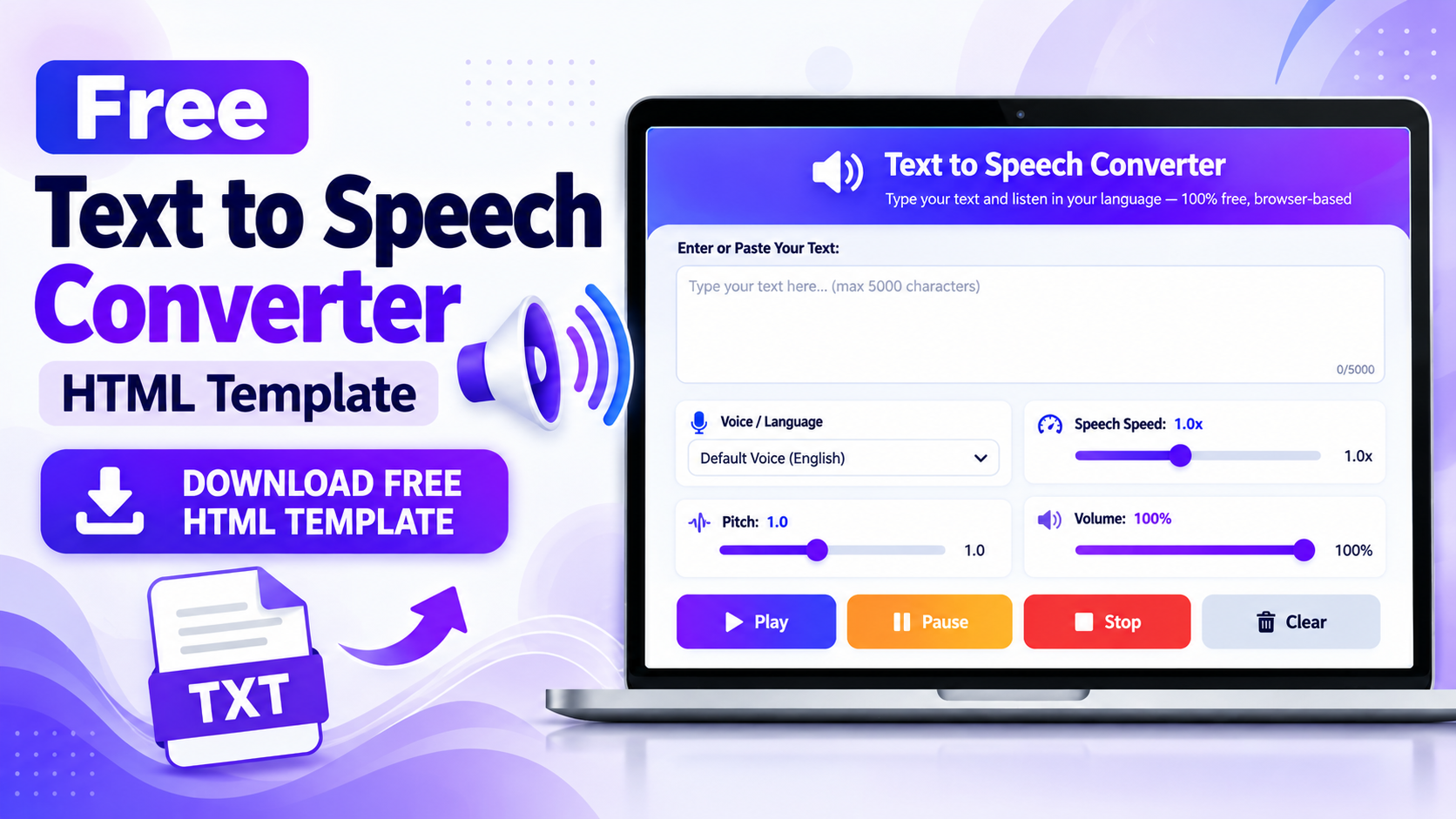
Looking for a simple way to convert written text into speech on your website? This Free Text to Speech Converter HTML template provides a browser-based tool that lets users enter text and listen to it aloud. It includes voice selection, speech speed, pitch, volume, and playback controls in a responsive interface.
Built with HTML, CSS, and JavaScript, the tool uses the browser’s Web Speech API for speech synthesis. You can use the template as a starting point for a standalone tool page and customize its appearance to match your website.
Download Free Text to Speech Converter HTML Template
Get the Text to Speech Converter HTML template and use it to create your own text-to-speech tool website.
📥 Download Text to Speech HTML Template (TXT)
What Is a Text to Speech Converter?
A Text to Speech (TTS) converter turns written text into spoken audio. It can help users listen to notes, messages, short articles, and other written content instead of reading everything on the screen.
This template uses the browser’s speech synthesis functionality. Available voices, accents, and languages depend on the browser, operating system, and voices installed on the user’s device.
Features of the Text to Speech HTML Template
1. Text Input With a 5,000-Character Limit
Users can type or paste text into the editor. The supplied code limits the input to 5,000 characters, making it suitable for short passages, notes, and messages.
2. Voice and Language Selection
The voice dropdown displays the speech voices available through the browser. Users can choose from the listed options, although the available languages and accents may differ between devices.
3. Adjustable Speech Speed
The speed slider ranges from 0.5x to 2.0x. Users can slow down the speech to follow the text more easily or increase the speed to listen more quickly.
4. Adjustable Voice Pitch
The pitch slider ranges from 0.5 to 2.0. It changes the pitch value supplied to the speech synthesis engine, although the audible result depends on the selected voice and browser.
5. Volume Control
The volume slider ranges from 0% to 100%. It adjusts the volume value supplied to the browser’s speech synthesis engine. The device’s system volume can also affect the final sound.
6. Play and Pause Controls
The Play button starts speech playback. The Pause button pauses the current speech, and the same control can resume playback.
7. Stop Speech
The Stop button cancels the current speech synthesis operation and resets the playback controls.
8. Clear Text
The Clear button stops current speech, removes the entered text, and returns focus to the text editor so users can start again.
9. Responsive Design
The template includes responsive CSS to help the interface fit different screen sizes. On narrow screens, the settings use a single-column layout and the buttons stack vertically.
10. Advertising Placeholder Areas
The source code contains advertising placeholders above and below the tool. These are placeholders rather than active advertisements. If you add advertising code, verify that your implementation complies with the relevant advertising platform policies.
How Does the Text to Speech Tool Work?
The tool uses JavaScript to interact with the Web Speech API’s speech synthesis feature. When a user clicks Play, the script creates a speech utterance from the entered text and applies the selected voice, rate, pitch, and volume settings.
The browser then attempts to speak the text using its available speech synthesis engine. The basic tool does not require a dedicated speech-generation API or backend service, but it does depend on browser support and available voices.
How to Use the Text to Speech Converter
- Open the page where the tool is installed.
- Type or paste your text into the editor.
- Select an available voice from the Voice / Language dropdown.
- Adjust speech speed, pitch, and volume.
- Click Play to listen to your text.
- Use Pause or Resume to control playback.
- Click Stop to cancel speech playback.
- Click Clear to remove the text and begin again.
How to Customize the HTML Template
The template uses HTML, CSS, and JavaScript, allowing developers to customize its design and behavior. Keep a backup of the original source code before making changes.
- Colors: Change the gradients, backgrounds, and button colors to match your website.
- Typography: Adjust font family, size, and weight.
- Layout: Modify spacing, borders, and responsive breakpoints.
- Text limit: Change the textarea’s maxlength value and update the placeholder text if required.
- Footer links: Replace the example Privacy Policy, About Us, and Contact URLs with your actual page URLs.
- Advertising: Add appropriate advertising code if you intend to use the placeholder areas.
After editing the template, test the voice selector, speech playback, and every button. Browser support and available voices can affect how the tool behaves.
Can You Use This Template on Blogger?
The code can be adapted for a single-page tool on Blogger. However, it is a standalone HTML tool, not a complete Blogger XML theme. Pasting an entire HTML document into the normal Blogger post editor may not preserve every style or script.
Adapt the code to your Blogger setup and test the page on desktop and mobile devices. Confirm that voice selection and playback work in your target browsers before publishing.
Can You Use This Template on WordPress?
You can adapt the template for a WordPress tool page. The appropriate integration method depends on your theme, editor, and how your WordPress installation handles custom JavaScript.
After adding the code, check for styling conflicts and confirm that speech synthesis works. If your editor or security settings restrict scripts, you may need a suitable method for adding custom JavaScript.
Benefits of a Browser-Based Text to Speech Tool
- Lets users listen to text in compatible browsers.
- Offers voice selection based on available browser voices.
- Includes speed, pitch, and volume controls.
- Provides Play, Pause, Resume, Stop, and Clear controls.
- Does not require a dedicated backend for basic speech synthesis.
- Can be customized using HTML, CSS, and JavaScript.
- Provides a starting point for a single-purpose website tool.
Important Limitations
Speech synthesis behavior varies across browsers and devices. Some browsers load voices asynchronously, and the available voice list may differ between systems. A language or voice will appear only if the browser makes it available.
Playback may also behave differently for long text, background tabs, or devices with limited speech synthesis support. Test the tool in your target browsers before publishing.
The supplied code provides speech playback in the browser. It does not include a feature for exporting the generated speech as an MP3 or another downloadable audio file.
Frequently Asked Questions
1. Is the Text to Speech HTML template free to download?
You can offer the template as a free download by adding the actual TXT file URL to the download link in this article.
2. Does the tool require an API key?
No dedicated API key is required for the basic browser-based speech synthesis functionality in this template.
3. Does it work in every browser?
The tool requires support for the Web Speech API’s speech synthesis feature. Availability and behavior vary, so test it in your target browsers.
4. Can I choose a different language?
You can select from the voices shown in the dropdown. Available languages depend on the browser, operating system, and installed voices.
5. Can I change the speaking speed?
Yes. The supplied speed slider supports values from 0.5x to 2.0x.
6. Can I adjust pitch and volume?
Yes. The template includes pitch and volume sliders. The audible result depends on the selected voice and device.
7. What is the maximum text length?
The supplied text area has a maximum length of 5,000 characters.
8. Can I use the template on Blogger or WordPress?
Yes, it can be adapted for either platform. You may need to adjust how the HTML, CSS, and JavaScript are integrated.
9. Can I download the generated speech as an audio file?
No. The supplied code supports browser-based speech playback but does not include an audio export feature.
10. Why are some voices missing?
The dropdown lists voices exposed by the browser. If a voice or language is unavailable on the device, it will not appear in the list.
Conclusion
The Free Text to Speech Converter HTML template provides a starting point for adding browser-based speech functionality to a website. It includes voice selection, adjustable speed, pitch and volume, playback controls, and a responsive interface.
Use the download link near the beginning of this article after replacing the placeholder with your actual TXT file URL. Adapt the code to your website, test it in compatible browsers, and verify that voice selection and playback work as expected before publishing.