
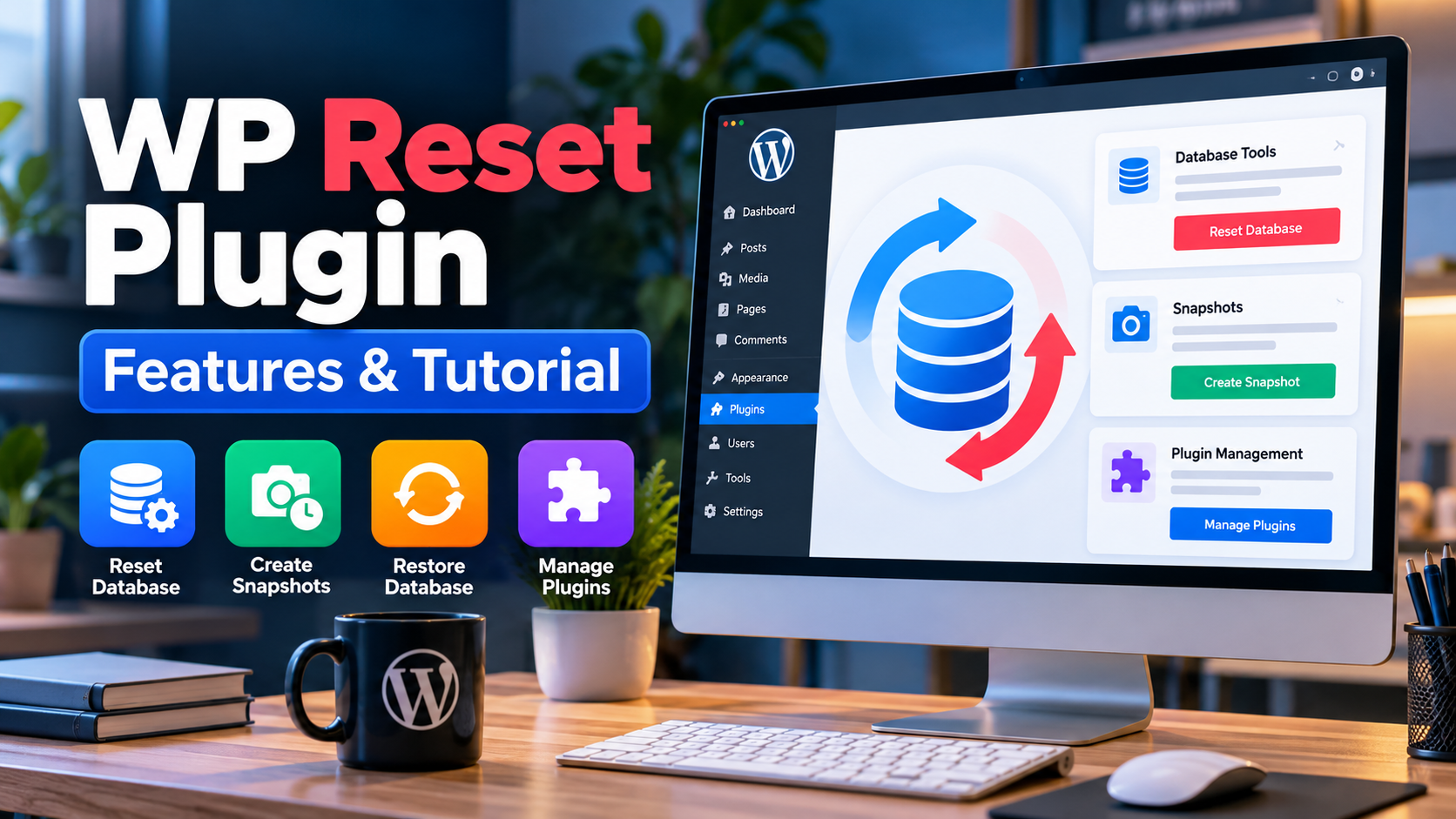
Managing a WordPress website often involves testing plugins, changing themes, troubleshooting errors, and experimenting with new settings. During development, these activities can leave a website filled with unwanted test content, temporary settings, and database entries. The WP Reset plugin provides tools that help WordPress users reset their database or clean up selected parts of their website without reinstalling WordPress from scratch.
In this guide, you will learn what the WP Reset plugin does, how its main features work, how to install and use it, and what you should consider before resetting a website.
What Is The WP Reset Plugin?
WP Reset is a WordPress plugin developed by WebFactory. It is designed to reset a WordPress database to its default installation state or remove selected website components through individual cleanup tools. It is particularly useful for developers, designers, website testers, and beginners who regularly experiment with WordPress configurations.
Unlike a complete WordPress reinstallation, a standard database reset does not remove your existing WordPress files. Your themes, plugins, and uploaded media files remain on the server, although their database records and settings may be removed. This distinction is important because resetting the database can make existing content and settings unavailable even when their associated files still exist.
You can explore the plugin and its current details on the WP Reset plugin page on WordPress.org.
Key Features Of WP Reset
1. Complete Database Reset
The main feature of WP Reset is its ability to reset the WordPress database to a default installation state. This can remove posts, pages, comments, custom post types, users other than the user restored by the reset process, and database settings or records stored in the affected tables.
During a standard reset, certain important settings, such as the site title, WordPress address, site address, language, and search engine visibility setting, are preserved. The currently logged-in user is also restored with the same username and password.
This feature is useful when you want to start fresh with a development website without reinstalling the WordPress core files. However, it should not be used casually on a live website because the removed database content may be difficult or impossible to recover without a suitable backup or snapshot.
2. Database Snapshots
Database snapshots allow you to save the current state of supported WordPress database tables before making significant changes. You can create a snapshot, restore it later, compare it with the current database, or export it as a compressed SQL file.
Snapshots are especially useful when testing new plugins, changing theme settings, or experimenting with database-related functionality. If a test creates unwanted database changes, restoring an earlier snapshot can help return the database to its previous state.
Keep in mind that a standard database snapshot does not include your entire website’s files, such as uploaded images, themes, or plugins. For a live website, maintain a separate, complete backup stored outside your hosting account.
3. Selective Cleanup Tools
You may not always need to reset the entire database. WP Reset also provides tools for removing specific WordPress components. Depending on the tool selected, you can perform actions such as:
- Delete transient database entries.
- Delete installed plugins while retaining WP Reset.
- Delete installed themes.
- Reset supported theme customization settings.
- Empty or remove selected custom database tables.
- Delete files inside the WordPress uploads directory.
- Delete the .htaccess file.
These operations have different effects. Some modify database records, while others delete files from the server. Always read the description of each tool and confirm which data it affects before running it.
4. Automatic Snapshots
WP Reset supports automatic snapshots for certain operations. Depending on the enabled settings and supported action, a snapshot can be created before database cleanup or before plugin and theme changes.
Automatic snapshots can make testing more convenient by providing a previous database state to restore. However, they are not a substitute for a complete backup strategy. Database snapshots can also consume additional database storage, so review your snapshot retention settings regularly.
5. WP-CLI Support
WP Reset supports WP-CLI, the command-line interface used to manage WordPress websites. Users who are comfortable working with a terminal can execute supported reset, deletion, version, and snapshot commands without navigating the WordPress dashboard.
This functionality can be helpful for developers who manage multiple test environments or prefer command-line workflows. Beginners who do not use WP-CLI can work through the plugin’s WordPress administration interface instead.
6. Additional Features And Paid Options
WP Reset also offers features and capabilities beyond its basic reset tools, including functionality associated with its paid offering. Depending on the current plan and product version, these may include additional snapshot management, cloud-related functionality, collections, or emergency recovery tools.
Because product features and licensing terms can change, check the WordPress.org plugin listing and the WP Reset documentation for current details before choosing a plan.
Benefits Of Using WP Reset
The WP Reset plugin can simplify several WordPress development and maintenance tasks when used in the right environment.
- Saves setup time: Reset a development database instead of manually removing test content and changing numerous settings.
- Supports plugin testing: Repeatedly test plugin installation and configuration in a controlled environment.
- Helps with theme development: Clear supported customization settings and prepare a cleaner testing environment.
- Provides snapshot restoration: Restore a saved database state when supported changes need to be reversed.
- Offers selective cleanup: Remove particular components instead of performing a complete database reset.
- Supports command-line workflows: Use supported WP-CLI commands if you prefer terminal-based administration.
The actual benefits depend on your website configuration and the tools you use. WP Reset is primarily a database reset and development utility, not a universal solution for every WordPress error.
How To Install The WP Reset Plugin
You can install WP Reset directly from the WordPress plugin directory. Follow these steps:
- Log in to your WordPress administration dashboard.
- Navigate to Plugins > Add New Plugin.
- Search for WP Reset.
- Locate the plugin developed by WebFactory and check its listing before installing.
- Click Install Now.
- After installation finishes, click Activate.
- Open the plugin’s administration page under the Tools menu.
You can also find the plugin’s installation instructions and download information on its WordPress.org page.
How To Use WP Reset Safely
Step 1: Create A Complete Website Backup
Before making any major changes, create a complete backup of your WordPress website. Include both the database and all important files, such as themes, plugins, uploads, and configuration files. Store a copy somewhere separate from your live hosting environment.
Do not rely exclusively on WP Reset snapshots because ordinary database snapshots do not preserve the complete website file structure.
Step 2: Open The WP Reset Dashboard
From your WordPress dashboard, navigate to Tools > WP Reset. Review the available reset and cleanup tools. Read the description of each option carefully to understand which database records or files may be affected.
Step 3: Create A Database Snapshot
If you want a convenient way to restore the previous database state, create a snapshot before running a supported database operation. Give the snapshot a descriptive name, such as Before Plugin Testing, so you can identify it later.
For important websites, keep a separate full backup as well. A snapshot should be treated as an additional recovery option rather than your only backup.
Step 4: Choose The Appropriate Tool
Choose the tool that matches your goal. If you only want to remove transient entries or delete selected components, use the corresponding cleanup tool instead of resetting the entire database.
If you want to reset the database completely, understand that posts, pages, comments, user accounts, and other affected database content can be removed. Files may remain even though their related database records are deleted.
Step 5: Review The Confirmation And Reset
Follow the plugin’s on-screen instructions and carefully review the confirmation prompt. Reset actions can have significant consequences, and there is no guaranteed undo option if you have not created a suitable recovery copy.
Proceed only after confirming that the selected action is appropriate for your website. After the operation, check the WordPress dashboard and verify that the expected changes have taken place.
Step 6: Restore A Snapshot If Necessary
If you need to reverse supported database changes, open the snapshot management area and select the appropriate saved snapshot. Review the restoration warning before confirming the operation.
Restoring a snapshot replaces the affected current database tables with the saved versions. Changes made after the snapshot may therefore be lost. Confirm that you are restoring the correct snapshot before proceeding.
What Does WP Reset Delete?
Understanding the difference between database content and website files is essential before using this plugin.
| Website Component | Effect Of A Standard Full Reset |
|---|---|
| Posts And Pages | Database records are removed. |
| Comments | Database records are removed. |
| User Accounts | Most user records are removed, with the current user restored according to the reset process. |
| Theme And Plugin Files | Remain on the server during a standard full reset. |
| Uploaded Media Files | Remain in the uploads directory, although their Media Library records may be removed. |
| Site Title And Main URLs | Preserved by the standard reset process. |
| Custom Database Tables | Tables using the configured WordPress database prefix may be affected. |
| WordPress Core Files | Not removed by a standard full reset. |
These effects describe the standard full database reset, not every individual tool. Selective cleanup tools may delete files or other components. Plugins that store data outside the standard WordPress database prefix may also require special attention.
WP Reset Plugin: Important Safety Considerations
Although WP Reset is useful for development, incorrect use can cause serious data loss. Keep the following precautions in mind:
- Avoid experimenting on your live website: Use a staging site or local development environment whenever possible.
- Back up files and the database: A database snapshot alone is not a complete website backup.
- Understand selective deletion tools: Some tools remove files instead of only changing database records.
- Check custom database tables: Other plugins may store important information in custom tables.
- Be careful with multisite: Consult the current documentation before resetting a WordPress multisite installation.
- Check recovery options: Make sure you can access your backup before performing a destructive operation.
If you operate an online store, membership website, business website, or content-heavy blog, a full database reset can disrupt essential functions and remove valuable information. Never use it as a routine maintenance shortcut on a production website.
Who Should Use WP Reset?
WP Reset is best suited to WordPress users who need to repeatedly reset a database or remove selected components during development and testing.
- WordPress Developers: Useful for testing plugin and theme changes in development environments.
- Website Designers: Helpful when experimenting with configurations and supported customization settings.
- WordPress Beginners: Can be useful for learning and experimentation on a disposable test website, provided destructive actions are understood.
- Agencies And Testers: Can simplify repeatable testing workflows when used with appropriate backups.
- Site Administrators: May find selective cleanup tools helpful when their specific task matches the tool’s documented behavior.
It is not the right choice if your only requirement is a complete backup of a live website or a guaranteed way to fix every WordPress problem.
Frequently Asked Questions
1. What Is The WP Reset Plugin Used For?
WP Reset is used to reset a WordPress database, clean selected website components, and manage database snapshots. It is especially useful for developers and website owners working in testing environments.
2. Is WP Reset Free To Use?
WP Reset has a free plugin listing on WordPress.org. Additional functionality may be available through paid offerings. Check the current plugin listing and product documentation for the latest feature and licensing details.
3. Does WP Reset Delete All Website Files?
No. A standard full database reset leaves WordPress core files, installed themes, plugins, and uploaded media files untouched. However, some separate cleanup tools can delete files, so review the selected tool before running it.
4. Will WP Reset Delete My Posts And Pages?
Yes. A standard full reset removes posts, pages, comments, and other affected database content. Create a complete backup before proceeding if you may need this information later.
5. Does WP Reset Automatically Back Up My Website?
WP Reset does not automatically create a complete website backup by default. It provides snapshot functionality and backup-related options for supported operations, but ordinary database snapshots do not include all website files. Maintain a separate full backup.
6. Can I Undo A WP Reset Operation?
You may be able to restore a database snapshot created before the operation. However, recovery depends on having an appropriate snapshot or backup. A reset should not be considered reversible unless you have verified recovery options.
7. Can I Use WP Reset On A Live WordPress Website?
The plugin can be installed on a live website, but a full reset is destructive and can remove important content and user data. It is generally safer to perform development and reset operations on a staging or local website.
8. Does WP Reset Remove Plugins And Themes?
A standard full database reset does not remove installed plugin and theme files. Separate cleanup tools can delete plugins or themes, so choose the appropriate operation for your requirements.
9. Can WP Reset Help With WordPress Development?
Yes. It can help developers test plugins, experiment with database changes, reset test content, and restore supported database snapshots. It is particularly useful when repeated testing requires a consistent starting point.
10. Where Can I Download WP Reset?
You can find the plugin on the WP Reset page on WordPress.org. Review the available details, installation instructions, compatibility information, and documentation before installing it.
Conclusion
The WP Reset plugin is a practical WordPress development utility for resetting databases, cleaning selected components, and managing snapshots. It can save time when testing themes, plugins, and website configurations, especially in a staging or local development environment.
The most important consideration is data safety. A standard database reset can remove valuable website content while leaving the related media and other files on the server. Create a complete backup, understand the selected operation, and verify your recovery options before making destructive changes.
If you regularly build or test WordPress websites, explore the WP Reset plugin and its documentation to determine whether its features match your workflow.
Watch The WP Reset Plugin Tutorial
🎥 WP Reset Plugin Tutorial & Resources
Explore the WP Reset plugin, learn about its key features, and follow the tutorial to understand how to reset a WordPress database, create database snapshots, and manage website cleanup tools safely. You can access the plugin and related resources using the links below.