
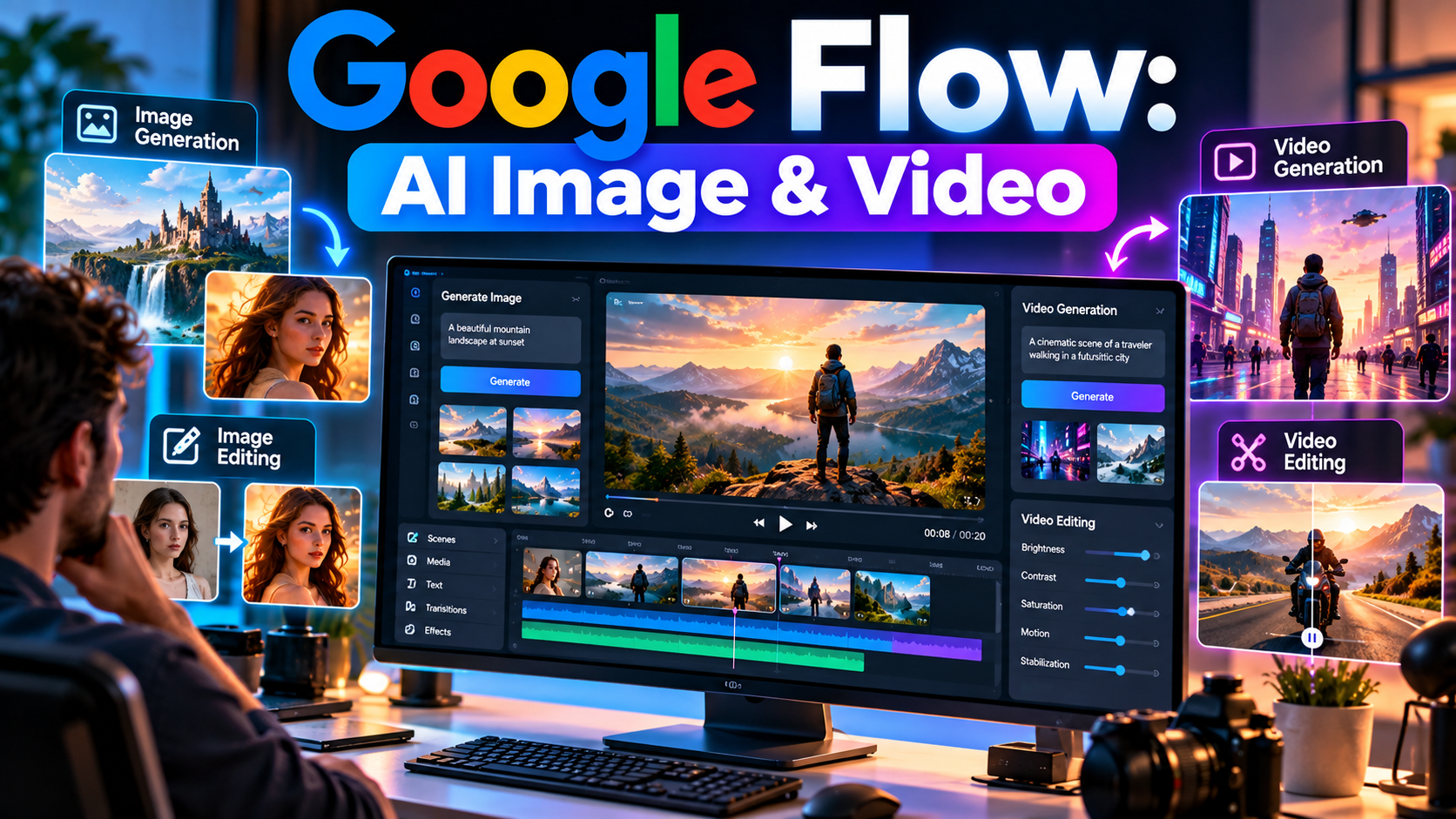
Google Flow is an AI-powered creative workspace from Google designed for creating, editing, and developing visual content. It can be used for both AI image creation and editing and AI video generation and editing, making it useful for creators who want to develop visual stories from text prompts, images, reference assets, frames, and existing media.
Flow is designed around an iterative creative workflow. Instead of generating one image or video and stopping there, users can create assets, edit them, generate variations, animate images, build scenes, extend supported video clips, and organize multiple creative elements within a project.
You can visit Google Flow to explore the current platform and available features.
What Is Google Flow?
Google Flow is an AI filmmaking and creative tool that combines Google’s generative AI models with tools for creating and refining images, videos, scenes, and visual stories.
The platform supports different workflows depending on the selected model. Users can generate images from text prompts, edit existing images, create videos from prompts and visual references, animate images, edit supported videos, and arrange multiple clips into scenes.
Google Flow is particularly focused on creative workflows where users can repeatedly refine an idea instead of relying on a single generation.
Can Google Flow Generate Images And Videos?
Yes. Google Flow supports both image and video creation.
For images, users can describe what they want to create with a text prompt and optionally provide reference materials. Generated images can then be edited, cropped, selectively modified, or used as ingredients for future video generations.
For videos, Flow can create clips from text prompts, images, ingredients, frames, and other supported visual references. It can also animate existing images and provide editing workflows for supported uploaded or generated videos.
This makes Google Flow more than a simple text-to-video generator. It can function as a broader AI creative workspace for developing both still images and moving scenes.
Google Flow Image Generation
Google Flow allows users to create images directly inside a project. Users can describe the desired image with a detailed prompt and select available image-generation settings such as aspect ratio, number of outputs, and model.
Reference images can also be added to guide the generation. This can be useful when you want a particular character, product, object, environment, or visual style to influence the result.
What Can You Create With AI Images?
- Characters And Character Concepts
- Product Visuals
- Creative Backgrounds
- Storyboards
- Film Concepts
- Marketing Visuals
- Social Media Graphics
- Reference Images For Video
- Concept Art
- Visual Storytelling Assets
Google Flow Image Editing
Google Flow also provides image-editing capabilities. Users can select an existing image and describe the changes they want using a text prompt.
Depending on the available image model, users can make changes such as adding or removing objects, changing visual characteristics, modifying selected areas, and refining an image through additional prompts.
Flow keeps previous image versions in the project’s history, allowing users to compare earlier versions and continue working from a previous result.
Selective Image Editing
Flow can also provide workflows for selecting part of an image and describing what should be changed. This can be useful when you want to modify one object or area without rebuilding the entire image.
Crop And Draw Tools
Available image tools can also include cropping and drawing features. Users can draw on an image or add elements such as text and shapes when supported by the current Flow experience.
Google Flow Video Generation
Google Flow can generate video clips from detailed text prompts. A prompt can describe the subject, action, environment, lighting, camera behavior, mood, and visual style.
Users can also provide images, ingredients, or frames to influence the generated video. This makes it possible to move from a still image or visual concept toward an animated scene.
Text-To-Video
With text-to-video generation, users describe a scene in natural language and select the available video model and generation settings. Depending on the selected model, different video lengths, aspect ratios, and features may be available.
Image-To-Video
Flow can animate an existing image. This allows creators to take a still visual and describe the movement they want to see in the resulting video.
Frames-To-Video
Supported workflows can use starting and ending frames to guide a video. This can be useful for creating transitions or controlling how a scene develops between two visual points.
References And Ingredients
Reference images and other ingredients can be added to supported video-generation workflows. These references can help guide characters, objects, environments, or other visual elements in a scene.
Google Flow Video Editing
Google Flow can also edit supported video clips. Users can upload or select a supported video and describe the desired change using a text prompt.
For supported workflows, the editing process can be used to refine aspects of a video while keeping the original version available in the project’s history.
Google’s current documentation states that Gemini Omni Flash supports editing uploaded and generated videos. Availability of video-editing features can vary by region and model.
AI Video Refinement
Users can provide additional prompts to refine an edited result. This allows creators to progressively adjust a generated video instead of starting over after every change.
Video Extension
Supported Veo-generated videos can be extended to continue a scene. This can help creators develop longer sequences from compatible generated clips.
Google Flow Scene Builder
Flow includes a Scenebuilder workflow for arranging multiple video clips into a sequence. Users can add clips, rearrange their order, trim clips, preview the sequence, and download a scene.
This workflow is useful when a project contains several individual AI-generated shots that need to be organized into a larger visual sequence.
Google Flow Agent
The Google Flow Agent provides an additional conversational workflow for creative tasks. According to Google’s documentation, the Agent can help brainstorm and plan ideas, generate images and videos, edit selected assets, create multiple variations, and organize project assets.
Users can provide media and references to the Agent and describe the desired action using natural language. The Agent can then help perform supported creative tasks within the project.
Google Flow And Veo
Google Flow uses different generative models for its creative workflows. Veo models provide supported video-generation capabilities, while Google’s image-generation and editing models are used for image workflows.
Google’s current documentation lists Veo 3.1 Lite, Veo 3.1 Fast, and Veo 3.1 Quality among supported video models. The features available can differ between models.
For example, supported Veo workflows can include text-to-video, frames-to-video, reference-based generation, and video extension, while video-to-video editing is not available on every Veo model.
What Can You Create With Google Flow?
Google Flow can be used for many different types of creative projects, including:
- AI-Generated Images
- AI-Generated Video Clips
- Cinematic Scenes
- Storyboards
- Film Concepts
- Social Media Videos
- Marketing Visuals
- Product Concepts
- Image-To-Video Animations
- Short Visual Stories
- Creative Prototypes
- AI-Assisted Video Projects
How To Create An Image In Google Flow
- Open Google Flow.
- Open an existing project or create a new project.
- Open the generation controls and select the image generation option.
- Choose the available image model and preferred settings.
- Write a detailed prompt describing the image.
- Optionally add reference images or other ingredients.
- Generate the image.
- Review the result and refine it with additional instructions when necessary.
How To Edit An Image In Google Flow
- Open a Flow project.
- Select or upload an image.
- Describe the change you want to make.
- Generate the edited version.
- Compare the new result with previous versions.
- Continue refining the image with additional prompts if needed.
For more precise edits, supported workflows can allow users to select a particular area of an image before describing the desired change.
How To Generate A Video In Google Flow
- Open Google Flow and create or select a project.
- Choose the video generation option.
- Select an available video model.
- Choose the available orientation, aspect ratio, outputs, and generation length.
- Write a detailed description of the scene.
- Add images, frames, characters, or other supported references when useful.
- Generate the video.
- Review the result and refine the prompt when necessary.
How To Edit A Video In Google Flow
- Open an existing Flow project.
- Select a supported uploaded or generated video.
- Choose the available video-editing workflow.
- Describe the changes you want in a text prompt.
- Add supported reference ingredients if needed.
- Generate the edited version.
- Compare the edited version with the original.
- Use additional prompts to refine the result when supported.
Google’s current documentation notes that some video-editing features are available only in certain countries and that model-specific restrictions apply.
How To Write Better Google Flow Prompts
Detailed prompts can help communicate a creative idea more clearly. Instead of writing only “a futuristic city,” describe the subject, action, environment, lighting, camera movement, composition, atmosphere, and visual style.
For video generation, explain what should happen during the shot. For image editing, clearly describe which part of the image should change and what the desired result should look like.
When using reference images, keep the text instructions consistent with the visual references. Conflicting instructions can make it harder to achieve the intended result.
Example Image Prompt
Example: Create a cinematic futuristic city at sunset, with tall glass buildings, soft golden lighting, flying vehicles in the distance, realistic reflections, atmospheric depth, and a wide cinematic composition.
Example Video Prompt
Example: A cinematic camera slowly moves through a futuristic city at sunset while a lone traveler walks through a busy illuminated street. Use realistic lighting, atmospheric depth, smooth camera motion, detailed environments, and a dramatic cinematic mood.
Google Flow Models And Features
The available capabilities depend on the selected model. Google’s current Flow documentation lists multiple video and image models, and each model supports a different combination of generation and editing features.
Before generating content, users should check the active model, resolution, generation settings, and current credit requirements in the Flow interface.
Google also notes that feature availability can vary by country or region, so the exact tools visible in an account may differ.
Google Flow Credits
Many Google Flow generations use AI credits. The amount required can vary depending on the model, generation type, video length, and other settings.
Because credit costs and limits can change, users should check the current credit information inside Google Flow before starting a large generation project.
Who Can Use Google Flow?
Google’s current documentation states that users must meet applicable age, region, and subscription requirements to use Google Flow. Current requirements include being at least 18 years old, being located in a supported region, and having an eligible Google AI Plus, Google AI Pro, or Google AI Ultra subscription.
Availability and features can change over time, so users should check Google’s current requirements before relying on a specific feature.
Google Flow For YouTube Creators
YouTube creators can use Google Flow to experiment with visual concepts, create supporting scenes, animate images, generate cinematic clips, and develop visual storytelling ideas.
For example, a creator could generate an image concept, refine the image, animate it into a video, create additional scenes, and arrange compatible clips into a larger sequence.
Creators should still review the applicable policies and usage terms of the services they use before publishing or monetizing AI-generated content.
Google Flow For Marketers
Marketers can use AI-generated images and videos for concept development, product storytelling, campaign ideas, social media content, and visual prototypes.
Reference-based workflows can also help when a project needs visual consistency across multiple creative assets.
Important Things To Know Before Using Google Flow
- Available features can vary by country and region.
- Different models support different image and video workflows.
- AI-generated results may require multiple iterations.
- Credit usage can vary depending on the selected model and generation.
- Some advanced features may be limited to particular plans or regions.
- Uploaded media can be subject to Google’s applicable safety and processing requirements.
- Users should review current Google terms and policies before using generated content commercially.
Frequently Asked Questions About Google Flow
What Is Google Flow?
Google Flow is an AI creative workspace for generating and editing images and videos, developing scenes, and creating visual stories with Google’s generative AI models.
Can Google Flow Generate Images?
Yes. Google Flow can generate images from text prompts and supported reference materials. Images can also be edited and refined within projects.
Can Google Flow Generate Videos?
Yes. Flow can generate video clips from text prompts, images, frames, ingredients, and other supported references.
Can Google Flow Edit Images?
Yes. Users can edit images with text instructions and supported image-editing tools. Previous versions can remain available in the project’s history.
Can Google Flow Edit Videos?
Yes. Google Flow supports video editing for supported workflows and models. Availability can depend on the country, model, and type of video.
Can Google Flow Turn An Image Into A Video?
Yes. Supported workflows can animate an existing image and turn a still visual into a video clip based on a motion prompt.
Does Google Flow Use Veo?
Yes. Flow uses supported Veo models for video-generation workflows. Different Veo models provide different capabilities.
Can Google Flow Extend AI-Generated Videos?
Supported Veo-generated videos can be extended. Extension availability depends on the compatible model and video workflow.
Can Google Flow Create A Complete Video From Multiple Clips?
Flow’s Scenebuilder can arrange multiple clips into a sequence, allowing creators to organize individual shots into a larger scene.
Is Google Flow Free?
Google’s current documentation states that access requires an eligible Google AI subscription, with AI credits used for many generations. Plans, credit limits, and feature availability can change.
Conclusion
Google Flow is designed as a broader AI creative workspace rather than only a video generator. It can help users create and edit images, generate videos, animate images, refine supported video clips, work with reference assets, and assemble multiple clips into scenes.
For creators interested in AI filmmaking, image generation, image editing, video generation, and AI-assisted visual storytelling, Flow provides multiple creative workflows in one environment. Because models, features, regional availability, subscription requirements, and credit costs can change, users should check the latest information inside Google Flow before beginning a project.
Visit Google Flow to explore the current AI image and video creation experience.